


You’re adding a colleague to HubSpot. They need to update contacts, check deals, or answer customer questions. But before they can get started, you have to choose their seat and decide what they’re allowed to do.
If you’ve ever wondered, “Can’t I just give them access?”, this guide is for you.
Here’s what the different settings mean and how to choose what someone needs.
First, what’s the difference between a user, a seat, and permissions in HubSpot?
These terms describe different parts of someone’s access:
- A user is the person you add to your HubSpot account.
- The user's seat determines which tools they can use.
- The user's permissions determine what they can see and do within those tools.
For example, two salespeople might each have a Sales Hub seat because they need access to sales tools. Their permissions could still be different: one might work only with their own deals, while the other needs to see the whole team’s deals.
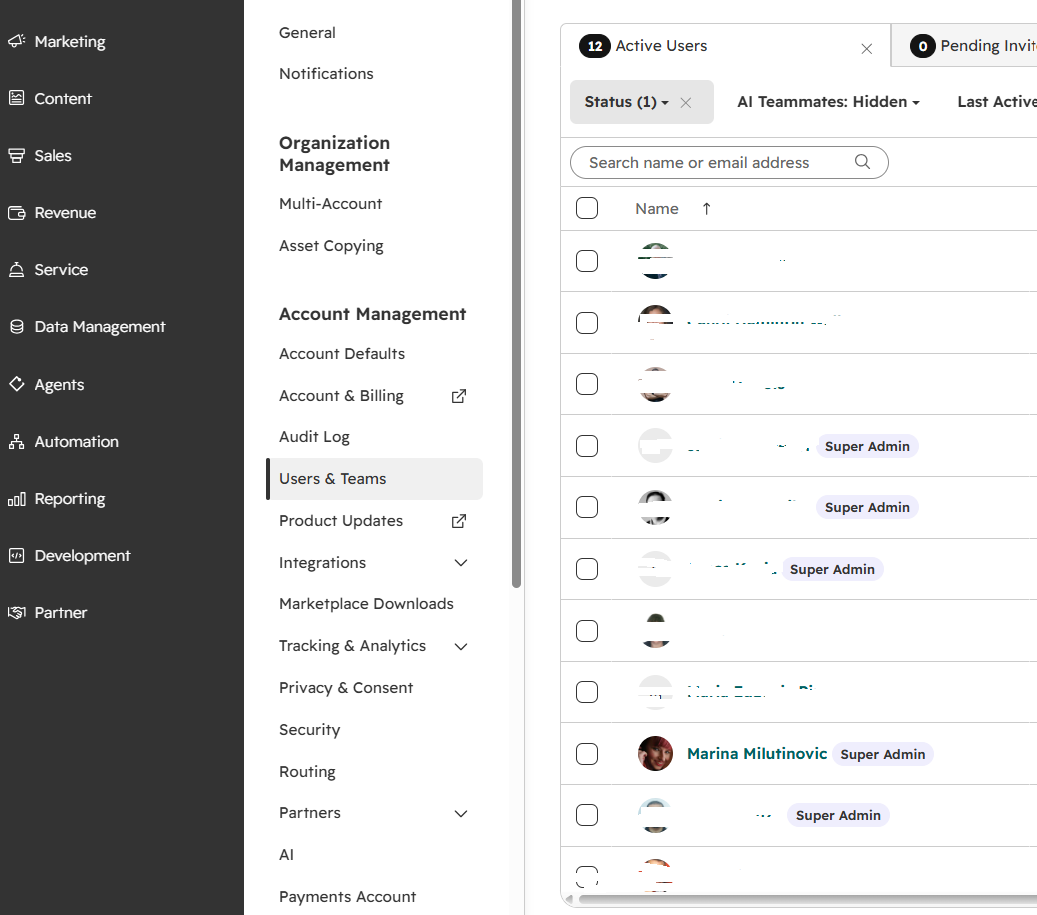
You’ll find these settings under Settings → Users & Teams, where you can add users and configure their access.
Which HubSpot seat does someone need?
Start with their everyday work. Will they mainly look at information, update it, or use more advanced tools?
For accounts using HubSpot’s Hub-based seat model, these are the main options:
| HubSpot Seat | What it’s for |
|---|---|
| View-Only | People who mainly need to check records, dashboards, and reports. |
| Core | People working with the core features in the HubSpot subscriptions you’ve purchased, e.g. a salesperson working in Sales Hub Starter. |
| Sales | People who need the full Sales Hub Professional or Enterprise tools. |
| Service | People who need the full Service Hub Professional or Enterprise tools. |
| Revenue | People who need the full Revenue Hub Professional or Enterprise tools, including advanced quoting. |
Sales, Service, and Revenue Seats also include Core functionality. The person’s permissions still apply. You can check which features each seat includes in HubSpot’s product catalog.
If they mainly need to check information
A View-Only Seat is worth considering. It’s free on Starter, Professional, and Enterprise subscriptions.
According to HubSpot’s seat guide, these users can review information and add notes to CRM records they can access. They can’t edit records, save reports, or manage tools and settings.
Think of a director who checks the sales dashboard before a weekly meeting. If they also need to update deal values, View-Only won’t cover that work.
If they work in HubSpot regularly
Check which features they actually use before choosing a seat. Someone updating customer details may have different needs from a salesperson using advanced sales tools.
Your subscription matters, too. HubSpot explains that Sales Hub Starter and Service Hub Starter use Core Seats for their respective features; specialized Sales and Service Seats apply to Professional and Enterprise.
A quick note: older accounts may follow legacy seat arrangements, while accounts on HubSpot’s flexible seats-and-credits pricing have a different seat structure. If the seat names above don’t match your account, check your subscription details first.
What do permissions control?
Permissions answer questions such as:
- Can this person see everyone’s contacts or only their own?
- Can they update deals?
- Can they delete records?
- Can they publish content or change settings?
For many CRM records, HubSpot lets you choose between access to the user’s own records, their team’s records, or all records. The available controls depend on the tool, as outlined in HubSpot’s permissions guide.
A useful way to decide is to finish this sentence:
“To do their job, this person needs to…”
Be specific. “See the support team’s tickets” gives you a much better starting point than “have manager access.”
Who should be a Super Admin?
Super Admin access gives someone broad control over your HubSpot account. Keep it for people responsible for running and maintaining the system.
A manager who needs to review their team’s work may only need wider viewing permissions. Their job title alone doesn’t tell you which access to assign.
Super Admin status also doesn’t automatically unlock paid Sales or Service features that require the relevant seat.
If someone occasionally needs a task that requires Super Admin access, ask an existing Super Admin to handle it. That’s also HubSpot’s recommendation.
What are teams and permission sets?
You may come across these when organizing a larger account.
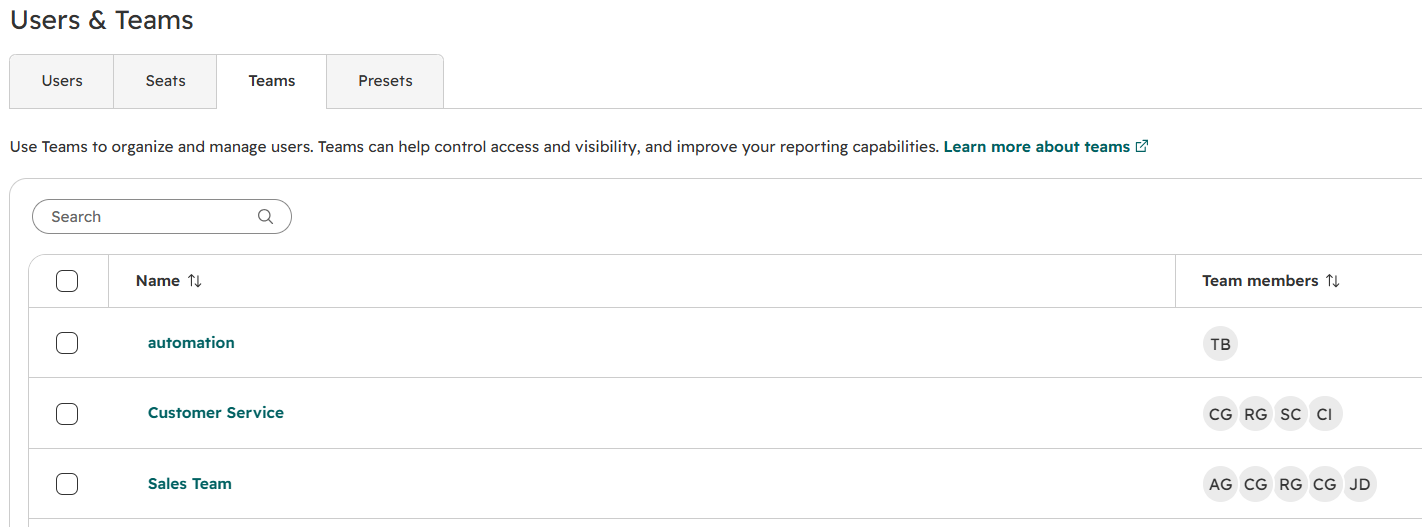
Teams group people together, such as your sales or customer support staff. They help with reporting, collaboration, and access to records. Team features depend on your subscription.
Permission sets save a group of access settings so you can reuse them. For example, you could give new support agents the same agreed permissions instead of setting up each person from scratch. Creating and editing permission sets requires Enterprise.
You don’t need to master all these options before adding a colleague. Start with what they need to do, then use the settings available in your account.
What about an agency or HubSpot partner?
Eligible HubSpot Solutions Partner employees can use a free Partner Seat when working in your account. You still configure their permissions.
Ask your partner which access they need for the agreed work. Being an external consultant doesn’t automatically make someone eligible for a Partner Seat.
Before you invite someone, ask these five questions
- What will they do in HubSpot each week?
- Which tools do they need for that work?
- Whose records should they be able to see?
- What should they be able to change?
- Will they be responsible for managing HubSpot itself?
Once they’re set up, ask them to try their usual tasks. If something is missing, check the specific tool, seat, or permission involved before giving them broader access.
Keep a short note of why you chose their setup. When they move to a different role, or someone new joins the team, you’ll have something useful to work from.
Checked against HubSpot’s documentation on November 17, 2026. Available features vary by subscription and pricing model.
Share this
Why We Love LinkedIn Ads For Growing B2B Leads

Why Are Your Brand CPCs Getting More Expensive?