


Your sales team needs to update deals. Marketing needs to prepare campaigns. Managers need to review performance.
HubSpot permissions help you give each person access that fits their work. Here’s how to decide what they need, make the changes, and check that everything works.
Where to find permission settings
Click the settings gear icon in HubSpot’s top navigation bar, then select Users & Teams in the left sidebar.
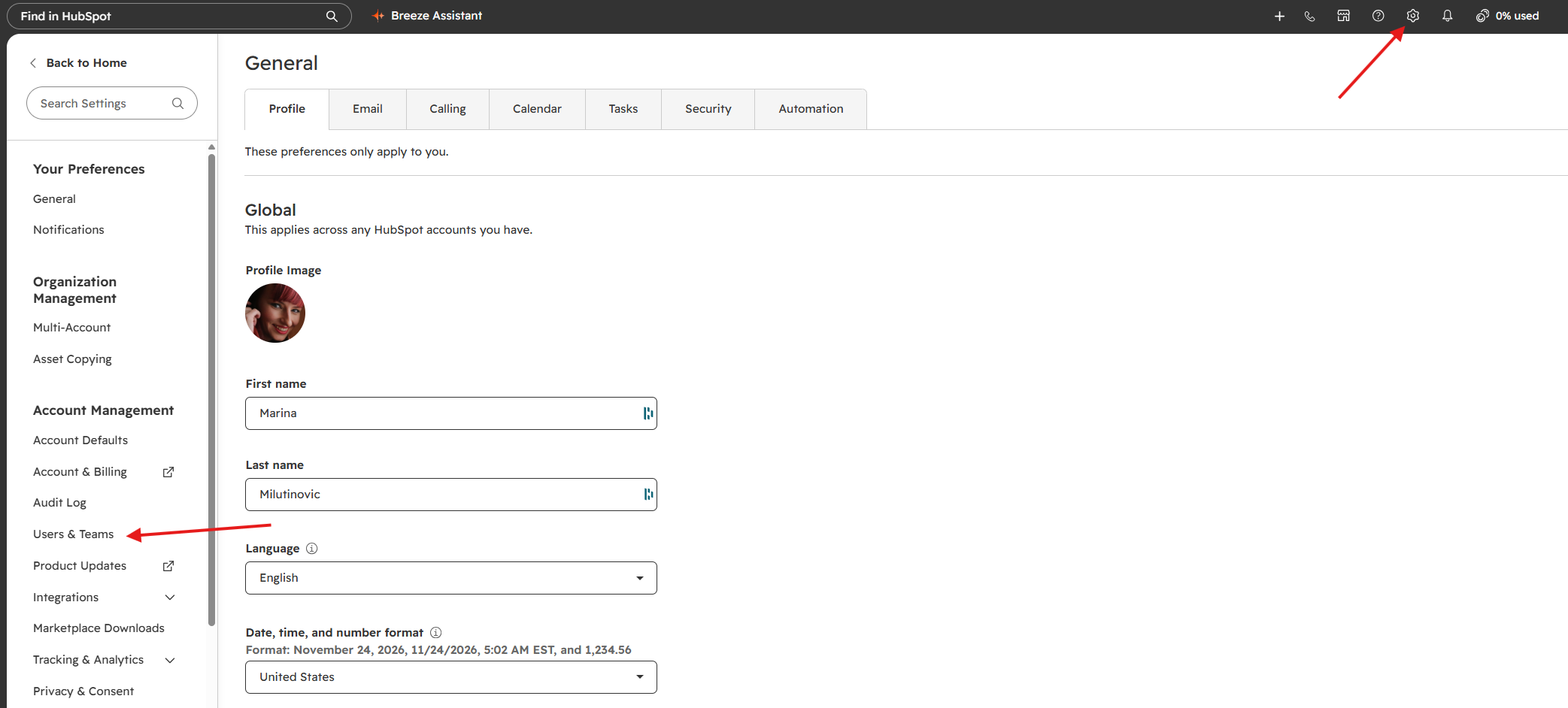
Choose the person whose access you want to review, open their Access tab, and select Edit permissions. You’ll need the appropriate administrative access to change user permissions.
- Super Admin: Can edit user permissions and make other users Super Admins.
- Add and edit users: Can edit user permissions, but can only grant permissions they already have themselves. Cannot make someone a Super Admin.
- Neither of these: Must ask a Super Admin or someone with Add and edit users permission to make the changes.
If you can’t find Edit permissions, ask your HubSpot Super Admin or someone with Add and edit users permission to review and update the user’s access for you.
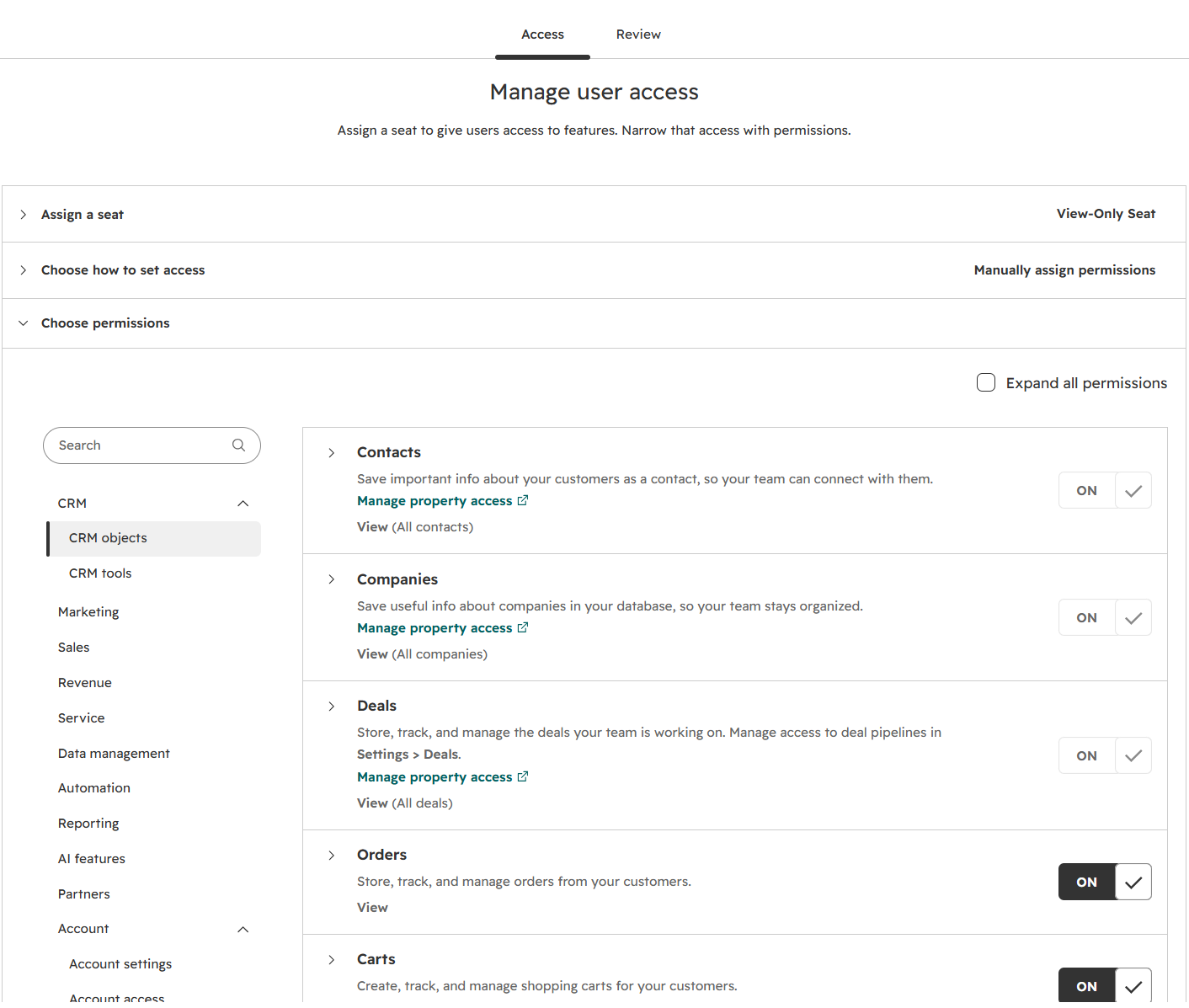
Start with the work they do
Before changing anything, list a few tasks the person handles regularly. Be specific: “updates their team’s deals” is more useful than “needs manager access.”
Use these questions to guide the conversation:
| Area | What to ask |
|---|---|
| Sales and CRM | Which contacts, companies, and deals do they work with? What should they be able to update? |
| Marketing | Which tools do they use? Do they prepare content, publish it, or both? |
| Customer service | Which tickets, inboxes, and service tools do they need? |
| Reporting | Do they review reports or also create and maintain them? |
| Account management | Are they responsible for users, integrations, or account settings? |
Then check the relevant controls in HubSpot’s user permissions guide. The options vary by tool, and some permissions cover several actions.
Choose whose records they can access
For many CRM records, you can choose access to the person’s own records, their team’s records, or all records. Unassigned records have their own options.
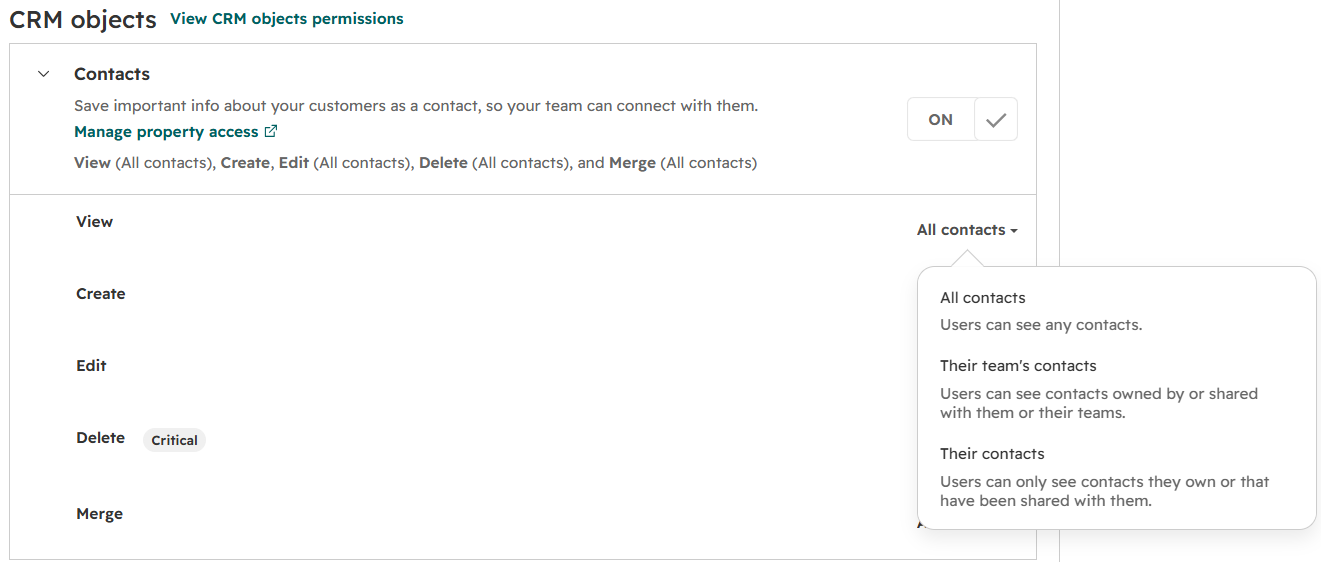
For example, a salesperson may only need to update their own deals, while their manager needs to review the whole team’s pipeline. A support team that shares work may need visibility into colleagues’ tickets.
Viewing and editing can have different scopes. Someone may need to see information across the business while only updating records they’re responsible for.
When setting record access, review the related settings before saving. HubSpot notes that changing the View scope can also adjust Edit, Delete, and Merge permissions.
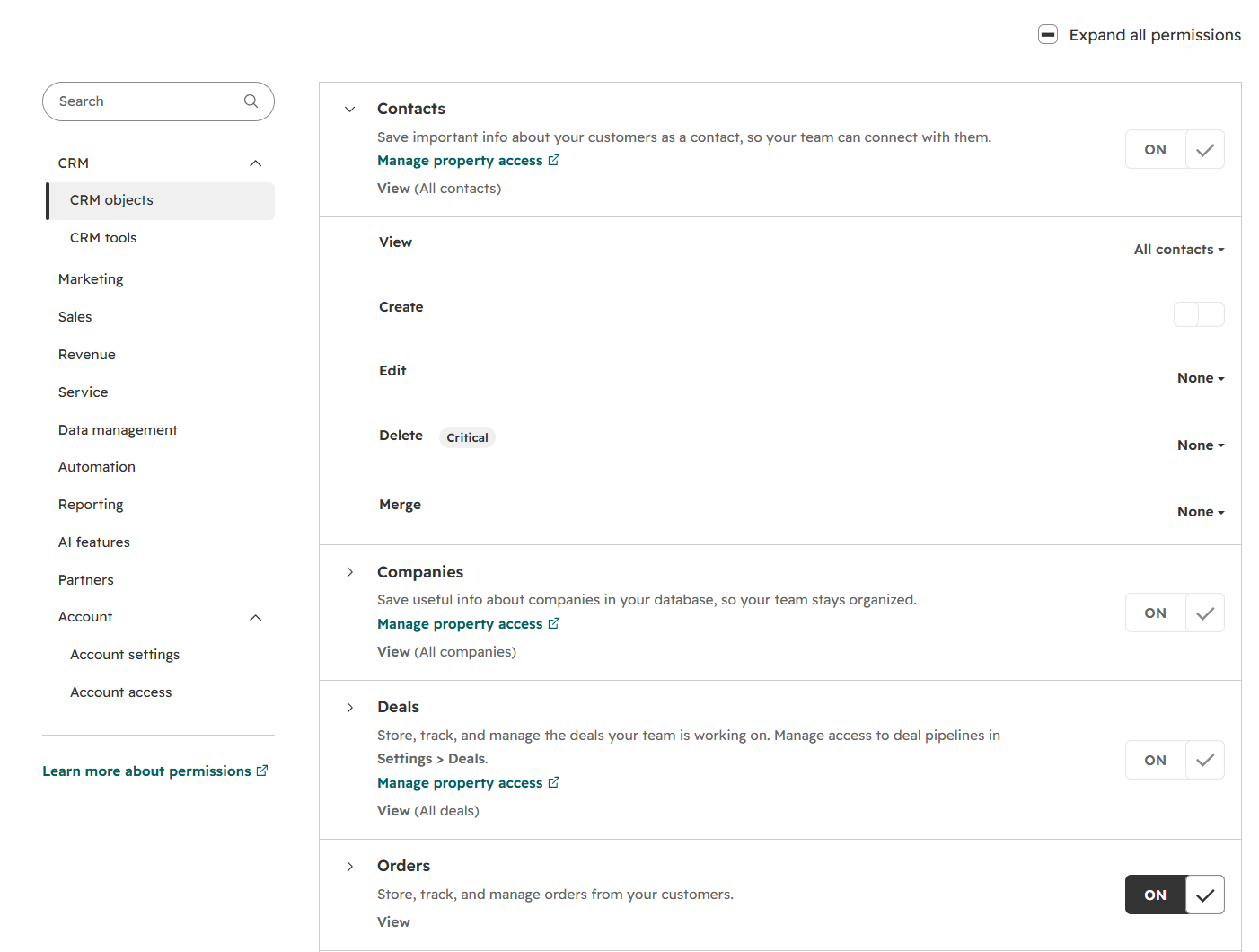
Check sharing settings for individual items
Sometimes a person can use a tool but can’t open a particular item within it. That’s a reason to check sharing settings before expanding their overall permissions.
Shared inboxes, reports, dashboards, and workflows can have their own access controls, depending on your subscription. HubSpot’s guide to restricting access to individual assets explains these differences.
For example, if someone can’t open a shared inbox, check whether they or their team are included in its inbox access settings.
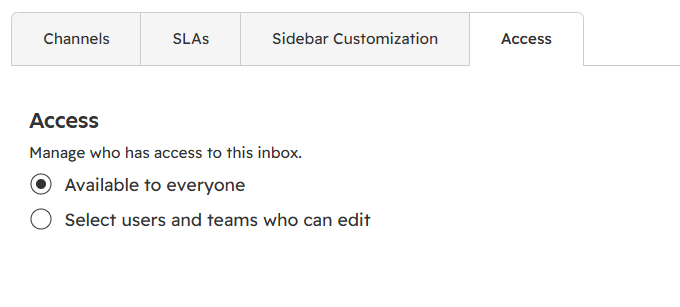
If the problem involves a shared view, confirm whether it’s a CRM view or a Help Desk view. Their management controls differ, as explained in HubSpot’s guides to CRM saved views and Help Desk views.
Review actions that affect shared information
Give extra attention to permissions for deleting records, importing data, exporting information, and changing shared settings.
Decide who will handle these tasks. Someone who updates customer details every day may have no reason to import a database or manage other users’ access.
For deletion, check the exact action you want to restrict. Turning off Bulk delete doesn’t prevent every kind of deletion, and Edit permissions can allow deletion of record activities. The exceptions are covered in HubSpot’s CRM permissions guidance.
If a task requires Super Admin access only occasionally, HubSpot recommends having an existing Super Admin complete it rather than elevating another user.
HubSpot permission settings may take 5 minutes to take affect
Once you’ve reviewed the relevant permissions, save your changes.
HubSpot says updates can take up to five minutes, and users should log out and back in after their permissions are changed.
Ask the person to try a few everyday tasks. Can they open the information they need and make the right updates? Are the actions you intended to restrict unavailable?
If a feature is still missing, check whether their seat includes it. Our guide to HubSpot users, seats, and roles explains the different options.
Review access when responsibilities change
Keep a short note of the agreed setup so you have a starting point next time.
Review it when someone moves teams, takes on new work, or leaves the business. It’s also worth checking access when you introduce a new HubSpot tool or change a shared process.
Available settings and features vary by subscription and pricing model.
Share this

HubSpot Users, Seats, and Roles Explained: Who Needs What?

Sales in the Time of Coronavirus
